NUFFNANG

Search Blog Content

Monday, October 3, 2011

Five Important Tips to Remember When Buying a Projector

 By

Photo: asia.cnet.com

In the last few years, projectors have become more popular as these devices now operate not only in boardroom and conference rooms but also within the education sector and at home. Consumers are now looking to change their home entertainment system into full-sized theatres that is like having your own cinema at home. Technology has played a crucial role in the development of projectors as now you can get devices that support both HD and 3D.
The technological advancements in projectors have resulted in more consumers and businesses acquiring a projector. You may find it is easy to purchase a projector but there a certain factors you need to consider beforehand, as you do not want to buy a projector that you cannot use or does not meet your requirements. Factors to consider are the price, functionality and replacement bulbs. In the market today, there are various models of projectors from different manufacturers such as Optoma, Epson, Acer, Samsung and Sanyo to name but a few.
The first factor you need to be aware of is what the purpose of the projector will be i.e. what you would the projector to do for you. Projectors are brought for a number of different reasons such as for classroom use, laptop, boardroom and conference presentations and home theatre use.
If you are a person that travels from one place to another to present presentations, then the ideal projectors for you will need to be lightweight and portable. For the home user, it is best to buy a DLP projector that supports HD and 3D as this will enable you to watch the latest movies in crystal-clear clarity. If you are planning to use the projector outside or with a dusty environment, then you need to do further research in obtaining cheap bulbs for the projector. Projectors used in these kinds of environments will have a shorter bulb life because of the dust and bugs that get attracted to the light of the projector. Remember the following five tips when choosing your projector:
1. Decide what the projector will be used for and where it will be used i.e. boardroom, classroom or at home.
2. If you are going to be presenting your presentations in different places, then a lightweight and portable is the best option to buy.
3. Evaluate the technical details of the projector against your requirements e.g. contrast ratio and lumens output.
4. Find out the cost of a replacements bulbs
5. Visit online forums and review sites in order to get a better understanding of the projector and to compare prices.
Projector Planet stocks a wide range of projectors that are suitable for a variety of settings such as the classroom, boardroom and at home. It is internet only retailer, which helps keep prices low. Box Limited runs this website, having been formed over fifteen years.
Article Source: http://EzineArticles.com/?expert=Andrew_Craig_Wall

Monday, September 26, 2011

10 Top iPhone Applications of 2011

 By

Photo: techlotips.com

This year has been an innovative year for the iPhone as applications push the iPhone's capabilities to the limits! Regardless of who you are, there are just some iPhone apps that are enjoyed by nearly everyone. Here are ten of highest rated iPhone applications around and best of all nearly all of them are available completely free!
Pandora Radio Price: FREE
If you enjoy music the least bit then this may be the program that takes care of everything you need. First of all the Pandora app is free to download! That's always a good start. Pandora essentially allows you to pick a genre of music that you enjoy and it plays songs based upon your choice. Don't like a song you hear? Give it a thumbs down and you'll never hear it again. The more you use Pandora, the more it learns you and your musical interest so that after a while you'll enjoy just about any song you come across. It surprised me how many of my friends had never used or even heard of Pandora but now nearly everybody I know has adopted it.
Wikipanion App Price: FREE
A world of knowledge at your fingertips. That's what Wikipedia gives computer users everywhere and now its available for your iPhone. What more could be said other than having a complete self updating encyclopedia on your iPhone will come in handy when the time comes to check some facts. In addition, the Wikipedia app has one very cool feature. Hit a button and it will pull up all the information it has about where you're at. Visiting the Golden Gate Bridge and want to know more about it? Well, just fire up the app and enjoy your virtual tour!
IMDb App Price: FREE
Quick! What's the casting lineup in "The A-Team" or when is "Ghost Busters 3" finally supposed to come out? This app gets its biggest workout around the water cooler at work. Become an instant movie guru with quick access to info on any movie released! When you get tired of schooling others, check out the "trailers" page for the latest on the new flicks coming out!
Angry Birds Price: $0.99
The best-selling, most downloaded and arguably most addicting game released for the iPhone, "Angry Birds" is by far the biggest time waster on my phone. The basics of the game is this: Shoot angry birds out of a slingshot at structures filled with egg stealing green pigs! Each angry bird has different abilities. (One bounces around after landing, another plows right through anything in its way and so on.) Angry Birds is this decade's Tetris. For less than one dollar, the price is right too!
Dropbox App Price: FREE
Some of the best applications are those that are useful even when you don't have your iPod/iPad around and "Dropbox" is one of those applications. This application stores files remotely and lets you access or download them to your iPod from anywhere! With Dropbox, you can use your iPod memory for more useful items like more apps! Dropbox also has one button sharing capabilities allowing you to share audio, video, pdf, txt, image files and more with a single click! Finally, by being able to upload files from your computer to Dropbox and then accessing them via the iPhone, it allows easy transfer of files between computer and iPod from anywhere!
VLC Media Player Price: FREE
One of the major complaints of the iPhone is its lack of video and audio playing capabilities. Unless you are viewing your media through one of the few supported Apple extensions, you're pretty much out of luck until now. VLC media player will play just about any kind of audio or video format you throw at it. It supports drag and drop playing, conversions, and an option list that's easy enough for novices but with enough advanced features to keep even the best video gurus pleased.
Facebook App Price: FREE
When the Facebook App first came out a while ago, it was completely shunned. It ran slow, didn't integrate well and left out many features to be desired. This week, Facebook just launched the next edition of its Facebook App and its no wonder why the Facebook App is the most used application in existence. With over 300 million mobile users now, Facebook has and will continue to put major resources into improving and expanding the apps capabilities. In many ways, the current app makes Facebook more simple than it already is and being able to snap a shot with your camera and immediately post it to Facebook is the easiest way to share your photos.
Kindle App Price: FREE
You may ask yourself why get the Kindle application when a free e-book viewer "i-Book" that looks good and has an integrated store is available. Three words: "Selection and Features." The Kindle offers a massive choice of books compared to Apple's app and the reading experience is great. You can also buy e-books from amazon.com with the Kindle app's near flawless sync capabilities. A must for any reader.
Google Earth Price: FREE
Now you can hold the world in the palm of your hand, literally. With all the functions of the Google Earth computer application now on the iPhone, you can get satellite photos, driving directions and just plain kill time while waiting in a waiting room. One of the greatest features is the panoramic view. In this mode, you can hold the phone out in front of you and it'll tell you businesses or items of interest in that direction. For example, if you're sitting on your porch and there is a McDonald's a half mile from your porch... Just hold the phone out in front of you and it'll tell you "Keep traveling in that general direction and in a half mile you'll be at a McDonald's." As you spin around in a circle, other fast food joints pop up! Pretty cool stuff.
IM + App: Price: FREE
If you're into instant messaging, IM+is for you! It gives you access to Yahoo, MSN/Live Messenger, GTalk, AIM/iChat, MySpace, ICQ, Facebook, Twitter and several more. With multitasking and push notifications in iOS 4, IM+ has been transformed from a curiosity into a gotta-have application, To have that many messaging services collectively under one roof is good enough! But one button messaging through multiple networks is icing on the cake! Its all I use anymore and it allows me to keep tabs on my friends spread throughout 3 networks.
If making IPod apps is something you're thinking of getting into here's where I learned: Check it out!
Hello, I'm a writer and I write for a living! I love writing. It is my passion! Hopefully, my experiences and knowledge can teach you something.
Article Source: http://EzineArticles.com/?expert=Michael_Anthony_OCon

Article Source: http://EzineArticles.com/6579048

Friday, August 12, 2011

4 Tips About Windows 7 Password Everyone Should Know

 By

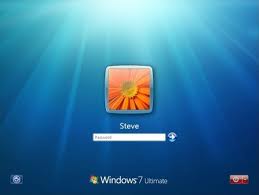
Photo: 2.bp.blogspot.com/-

If you've just updated to Windows 7 from Windows Vista or Windows XP, please remember to add a strong password to protect your PC from authorized users. The following are 4 simple tips if you intend to set a Windows 7 password.
1. Set a strong password
Using a strong password is among the most important steps you can take to protect your computer from hackers and unauthorized users. For a strong password, it should be 8 characters long at least, consisting of letters, numbers and symbols. Please never set a common password like "123456" and "abcdef".
Step 1. Open the User Accounts window by clicking Start button, Control Panel, Family Safety and User Accounts, User Accounts.
Step 2. Click on Create a password for your account link.
Step 3. Type your password, type it again to confirm, type a hint and then click the Create button.
2. Create a password reset disk
When you forgot Windows 7 password, a password reset disk allows you to change the lost password to a new one in seconds sothat you can access computer files again. The only problem is that you have to create the disk before your password is forgotten. Otherwise, you have to look for other solutions to resolving your problem.
Step 1. Open the User Accounts window by clicking Start button, Control Panel, Family Safety and User Accounts, User Accounts.
Step 2. In the left pane, click Create a password reset disk, and then follow the instructions.
Tip: Make sure you store the disk in a safe place as everyone can use the disk to log on your computer if he can get physical access to it.
3. Change your password regularly
A good password is the first line of defense against those who wish to gain access to our computers and the important data they contain. But you can keep your PC more secure by changing your password on a regular basis.
Step 1. Press CTRL+ALT+DELETE, and then click Change a password.
Step 2. Type your old password, type a new one, type it again to confirm, and then press ENTER.
4. Reset forgotten Windows 7 password
The easiest way to reset forgotten Windows 7 password is to use the reset disk as mentioned above. But many users forgot to create such a disk in advance. Under this circumstance, the most effective solution to solving the problem is to seek for a third-party tool, like Rekeysoft Windows Password Recovery which allows you to instantly reset the password by creating a bootable USB/CD/DVD in 5 minutes.
You could use Windows password recovery tool to perform Windows 7 password recovery.
Article Source: http://EzineArticles.com/?expert=Yao_Chuanghai

Article Source: http://EzineArticles.com/6469621

Wednesday, July 27, 2011

The Wireless IP Camera

 By

Photo: i00.i.aliimg.com

The wireless IP camera is one of the many fairly recent products that came into fruition from the long promise of technological convergence between computers and telecommunication technology. It's one of the crowing jewel of the electronic product lines that far remove not only extended wires attached to security cameras, but it also has everything the digital world has to offer - encryption, data compression and web transmission.
In the early 90's, there was this long desire among technological vendors to merge the advancing computer technology with the current electrical or electronic devices such that you, as an end-user, will no longer have a hard time configuring whatever electronic devices and equipment you want to install at home. Some companies foresaw then the possibility that you as a consumer will be required to learn less the intricacies of the technology to use a particular product at home.
Thus, it is getting easier for you to make use of your basic computer skills to control everything that surrounds you using your very own personal computer or laptop for that matter. It's actually a win-win solution approach - the vendor getting more sales of their new product line and on the other end you, as a user, will have the easier way to manage all sorts of stuff you installed in your home thereby shifting in the mindset from the century-old analog to digital system the way you control your installations of devices or equipments.
Wireless IP camera is just one of these fairly recent products line that incorporates the use of the existing analog system, mainly the transmission between transceivers between the device and the router/modem used for internet connection. You don't need to learn much of the intricacies between the two communicating devices and could just concentrate more of configuring the equipment for your basic home needs.
The signal transmission between the remote camera and the computer are fully un-wired thus saving you the hassle of connecting the unit using the messy wiring. Thus, wireless communication saved you not only the hassle of wires running all over the house but also the danger of faulty wire connection which can lead to faulty wiring accidents which claimed loss of property or worse, lives.
In some countries, wiring electrical/electronic equipment usually requires you to contact professional installers such that when there are troubles around, there would be someone to refer to rather than the user who is maybe in danger of doing the wiring himself that could lead into insurance claims being forfeited. An ordinary household also is running the increased risk of electrocution if he is tinkering around the high voltage wires installed in the house.
Today, there are things that have been so far improved like for example the longevity of batteries and availability of solar technologies that can easily be integrated into the camera system hence improving the possibility of detaching an electronic unit from messy and undesirable home electrical connections when installing a device inside or outside the house and expected to last for many hours without recharge.
So the foreseen integration of electronics and computers into single one unit like this security camera came at the time when all other integrated parts are available or commercially possible.
Jorge is an IT guy who loves any new product lines that improve the lives of homeowners and ordinary users. For more information about wireless camera, you many visit his blog at The Wireless IP Camera or his camera review site at Wireless IP Camera Review
Article Source: http://EzineArticles.com/?expert=Jorge_L_Barba

Article Source: http://EzineArticles.com/6413809

Monday, July 18, 2011

Dual Monitors - Are They More Efficient?

By

Photo: smartcomputingcloud.com

Dual monitors, often thought to be twice as efficient at putting application windows in front of the user. That much is true, but twice the mass of readily available information does not equal twice the productivity. Whether you believe I'm right or wrong depends on what kind of use you'd imagined the second display would get. Let me explain.
Single-tasking
There are lines of work where you can be more effective at "shipping the product" when you can focus on one thing at a time. These are usually creative tasks, such as copywriting, front-end web design or graphic design.
A note regarding graphic design: though it's mainly a single-tasking job, huge monitor area or even dual monitors can be helpful when working with large images, and a common use for the second display is to hold toolbars at. In this sense two monitors serve the purpose of more comfortable single tasking, which can improve efficiency.
Being a person who works with text, I find all kinds of distraction to be very harmful to the quality of my work as well as the volume I'm able to produce in any period of time. The creative mind, when forced to come up with something new, tries and grabs any little detail it can. Let that be the menu bar at top of the screen or a secondary monitor filled with unnecessary clutter.
And it's not only me who thinks that; writing applications pop up by the dozen, which do one thing and nothing else at all. They're called dark-room apps. Basically, they're full screen text editors, with the sole purpose of hiding everything but the text from you.
Imagine what kind of devastating blow would a second monitor deal to the productivity and efficiency of the person who thrives on the focused attention he pays to the piece on his screen.
That granted, not all tasks are single-tasking heavy. Programmers, as I found out, can actively work on two separate displays at any given time without losing track of active windows on either.
Multi-Tasking
Programmers are technical people with great attention to detail, yet don't lack the capability to embrace complex problems. They seem to have no problem with working on two monitors at a time. In fact, they often say they need two to not switch back and forth between windows.
Their assignments require them to be able to multi-task and that's where dual-monitor display setups soar and thrive.
One monitor has the code in Eclipse, the other monitor runs a browser where they can instantly test whatever they're developing. System administrators' brains work in a similar way, except that they're keeping an eye on everything at the same time.
A friend of mine who oversees a computer network in his local high school described the sweet-spot in amount of monitors as 'more'.
Conclusion
If you're a creative type person, who comes up with new ideas for a living, you're probably not going to profit from a second monitor. You can chuck a second browser window there, or your e-mail client, and feel busy all the time, but you're not going to be more efficient at what you do due to the constant stream of distractions you're bound to face.
If you're more of a strategic thinker and a practical person, you want to have a second display so you can more effectively multi-task. In this case effective multi-tasking means more efficient work performance.
Hope you have a better grasp on whether dual monitors increase efficiency for you, or not.
Have you decided you could make do with two monitors? My article comparing VX2450WM vs. VX2250WM gives you an insight on what to double up on.
Article Source: http://EzineArticles.com/?expert=Lajos_Nagy

Monday, July 4, 2011

Learn How to Speed Up Your Computer

By


Photo: tipsandtricksworld.com

Remember when you first bought your computer and everything was fast and perfect. The problem with computers is that if you don't take care of them, they will start to run slower. The reason is because we tend to download a whole bunch of stuff without properly deleting it. We also tend to not clean out our computer properly, which leaves unnecessary files all over the hard drive.
The first step to cleaning out a computer is to uninstall all programs that you don't use anymore. If you are unsure about a certain program, you can easily look the program name up on Google and figure out if you need to keep it or not.
After you have deleted the programs, you will want to make sure you go into your programs folder and delete all of the folders from the uninstalled programs, they don't delete when you uninstall a program.
Another problem that most people don't take care of is clearing out temporary files and internet files. Whenever you visit a web page, you are storing data in a number of different places. Overtime, this can cause a massive build up of data which needs to be properly deleted to keep the computer running at top speed. There are programs you can download that will get rid of these files in one click, I would highly invest in such programs.
In your system tools folder, there is a disk cleanup and disk defrag program. You should run these programs once every two weeks, this will make sure that your computer is not getting bogged down with data. Defragging basically takes all the data on the hard drive and pushes it up to the front so it will open quicker.
One other thing that could be slowing your computer down is spyware. You should invest in a really good spyware cleaner, even if you think you might not have spyware, you never know. Spyware will lurk on your computer in files that you won't even notice. They can also steal your personal information such as credit card numbers and email addresses.
The last thing you will need to do is look at the start up processes. Most of these processes run the whole time your computer is on, the more processes running, the slower your computer will run. In most cases, you can use a program to disable these processes. Always make sure the process isn't necessary to keep the computer running.
If you want to learn more about keeping your computer cleaning out and secure, visit http://howtocomputerrepair.com
Article Source: http://EzineArticles.com/?expert=Curtis_Dawson

Learn How to Speed Up Your Computer

By


Photo: tipsandtricksworld.com

Remember when you first bought your computer and everything was fast and perfect. The problem with computers is that if you don't take care of them, they will start to run slower. The reason is because we tend to download a whole bunch of stuff without properly deleting it. We also tend to not clean out our computer properly, which leaves unnecessary files all over the hard drive.
The first step to cleaning out a computer is to uninstall all programs that you don't use anymore. If you are unsure about a certain program, you can easily look the program name up on Google and figure out if you need to keep it or not.
After you have deleted the programs, you will want to make sure you go into your programs folder and delete all of the folders from the uninstalled programs, they don't delete when you uninstall a program.
Another problem that most people don't take care of is clearing out temporary files and internet files. Whenever you visit a web page, you are storing data in a number of different places. Overtime, this can cause a massive build up of data which needs to be properly deleted to keep the computer running at top speed. There are programs you can download that will get rid of these files in one click, I would highly invest in such programs.
In your system tools folder, there is a disk cleanup and disk defrag program. You should run these programs once every two weeks, this will make sure that your computer is not getting bogged down with data. Defragging basically takes all the data on the hard drive and pushes it up to the front so it will open quicker.
One other thing that could be slowing your computer down is spyware. You should invest in a really good spyware cleaner, even if you think you might not have spyware, you never know. Spyware will lurk on your computer in files that you won't even notice. They can also steal your personal information such as credit card numbers and email addresses.
The last thing you will need to do is look at the start up processes. Most of these processes run the whole time your computer is on, the more processes running, the slower your computer will run. In most cases, you can use a program to disable these processes. Always make sure the process isn't necessary to keep the computer running.
If you want to learn more about keeping your computer cleaning out and secure, visit http://howtocomputerrepair.com
Article Source: http://EzineArticles.com/?expert=Curtis_Dawson